Google Tag Manager is one of those tools that sounds technical and turns out to make your life simpler. Instead of asking a developer to edit the site every time you want to track a new button, you manage all your tracking from one place and publish changes yourself. This guide covers what GTM is, why it is worth using, and how to set it up cleanly, from the container to verifying a tag before you publish.
The short version
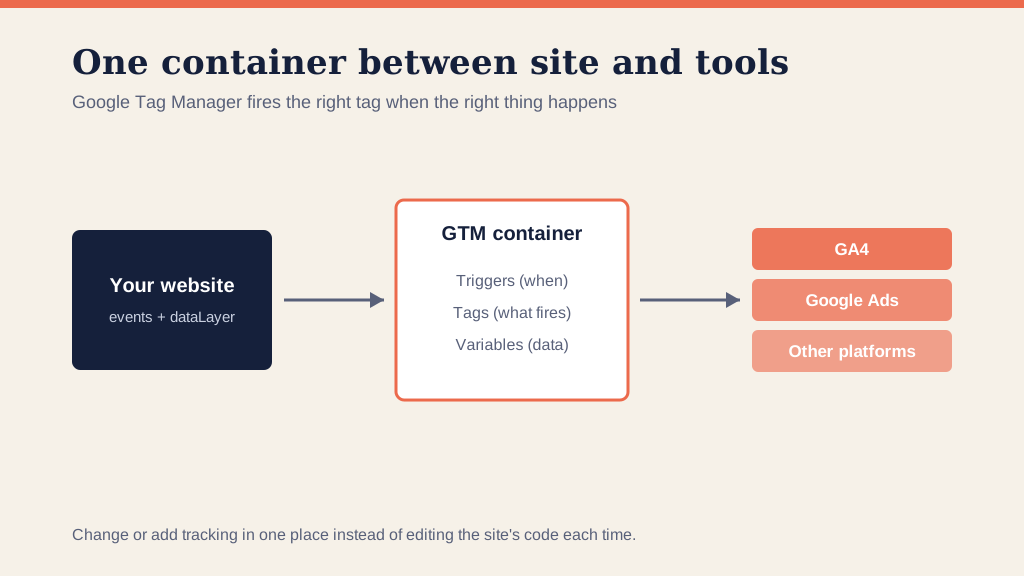
- Google Tag Manager is a free container that sits between your site and your tracking tools and fires tags when you tell it to.
- It replaces hardcoding tags into the site, so you add and change tracking without editing the code each time.
- The three moving parts are tags (what fires), triggers (when it fires), and variables (the data it uses).
- You run GA4 and Google Ads conversions through it, then verify in Preview mode and DebugView before publishing.
- Nothing goes live until you click Submit, so you can build and test safely.
What is Google Tag Manager?
Google Tag Manager, or GTM, is a free tool that manages the tracking tags on your website from a single container. A tag is a snippet of code that sends data somewhere, like a GA4 event or a Google Ads conversion. Rather than pasting each snippet into the site by hand, you add it once in GTM and control it from there.
The container is a small piece of code you install on every page once. After that, everything else happens inside the GTM interface, no more site edits.
Why use Google Tag Manager instead of hardcoding tags?
The case for GTM is speed and safety. Hardcode your tags and every change means a developer, a deploy, and a wait. Manage them in GTM and you add a new conversion or event yourself in minutes, test it, and publish. It also keeps your tags in one organised place instead of scattered through the site's code, which makes debugging far easier when something breaks.
For most sites this is the method we recommend over installing gtag.js directly. The one time to skip it is when you already have gtag.js hardcoded and do not want to migrate.
The three parts: tags, triggers and variables
Everything in GTM is built from three pieces, and once they click, the whole tool makes sense.
- Tags. The thing that fires, such as a GA4 event, a Google Ads conversion, or a Meta pixel.
- Triggers. The condition that makes a tag fire, such as a page view, a form submission, or a click on a specific button.
- Variables. The pieces of data a tag uses, such as the page path or the order value passed from the dataLayer.
A tag with no trigger never fires; a trigger with no tag does nothing. You pair them, add the variables the tag needs, and that is a working piece of tracking.
How to set up Google Tag Manager
The setup follows a clear order:
- Create the account and container. One account per business, one container per website, at tagmanager.google.com.
- Install the container code. Add the two GTM snippets to every page, in the head and after the opening body tag. On Shopify or WordPress a plugin or theme setting can place them for you.
- Add your GA4 configuration. Create the Google tag for your GA4 property so GA4 loads through GTM.
- Build your first event. Add a tag for the action you care about, such as a purchase or a lead, and attach a trigger that fires it at the right moment.
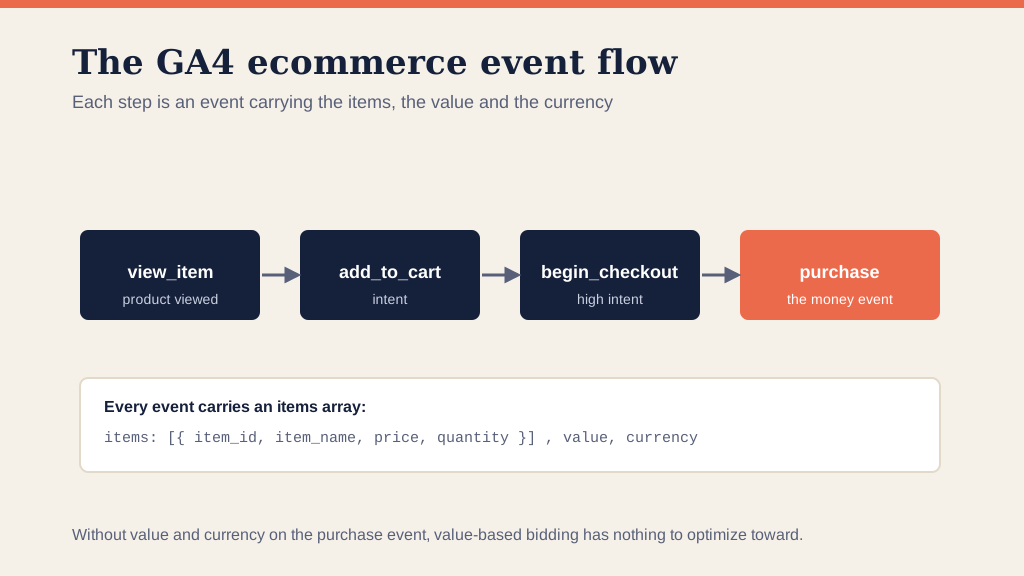
- Use the dataLayer for rich data. For values like revenue or product details, have the site push them to the dataLayer so GTM can read them into your tags. This is what makes value-based tracking possible.
If your forms or checkout need custom events, our guide to tracking events in GA4 with GTM goes deeper on the event side.
How to test before you publish
This is the step people skip and regret. Nothing you build in GTM is live until you click Submit, so build freely, then verify:
- Preview mode. Turn it on in GTM, browse your site, and watch which tags fire on which actions.
- GA4 DebugView. Confirm the events arrive in GA4 with the right parameters and values, not just that a tag fired.
- Then Submit. Once it checks out, publish the container. If something is wrong, GTM keeps versions, so you can roll back.
Getting this verification right is the difference between tracking you can trust and numbers that mislead every decision downstream.
Frequently asked questions
What is Google Tag Manager used for? Google Tag Manager is a free tool that manages the tracking tags on your site from one container, instead of hardcoding each one into the site. You add and change tags like GA4 and Google Ads conversions without touching the site code, which makes tracking faster to build and easier to debug.
Is Google Tag Manager the same as Google Analytics? No. Tag Manager is the delivery system that fires tags; Google Analytics 4 is one of the tags it delivers. GTM sends the data, GA4 collects and reports it. Most sites run GA4 through GTM rather than installing the GA4 tag directly.
Do I need Google Tag Manager? For most sites, yes. It is free, keeps your tags out of the page code, and makes later changes and debugging far easier than editing the site each time. The main reason to skip it is if you already have gtag.js hardcoded and do not want to migrate.
How do I check a GTM tag is working? Use Preview mode in Tag Manager and GA4's DebugView. Turn on Preview, browse your site, and confirm the tag fires on the right trigger with the right data before you publish the container. Nothing you build is live until you click Submit.
What are triggers, tags and variables in GTM? A tag is what fires, such as a GA4 event or a Google Ads conversion. A trigger is the condition that fires it, such as a page view or a button click. A variable is a piece of data the tag uses, such as the order value. Together they decide what gets sent, when, and with what data.
Tag Manager is the foundation the rest of your measurement sits on, and a clean setup is what makes everything above it trustworthy. If you would rather have the whole tracking stack built and verified for you, that is what our conversion tracking service is for.