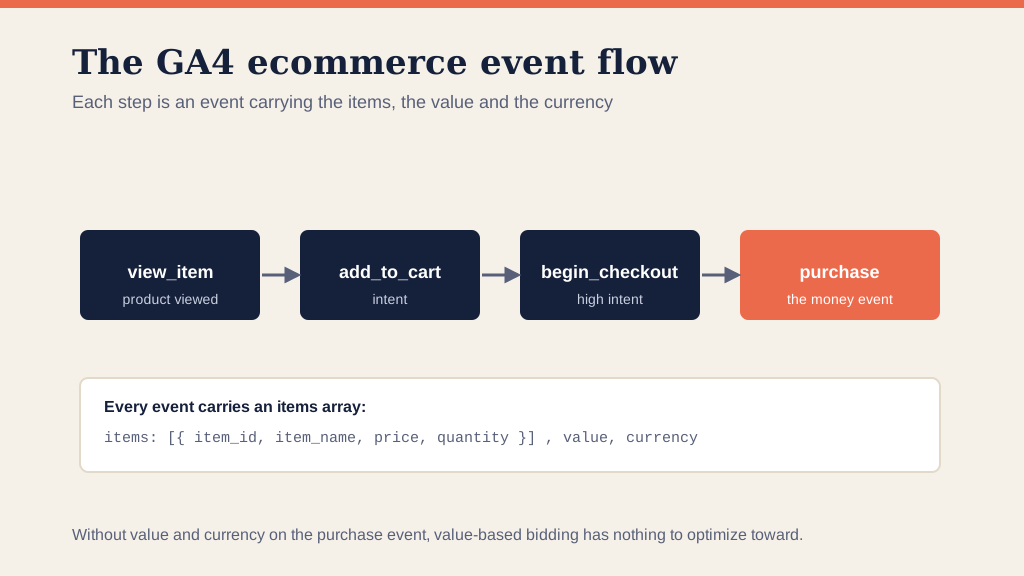

GA4 is built on events. Where Universal Analytics boxed every event into a fixed category, action, and label, GA4 lets you name events and attach your own parameters. That flexibility is the whole reason event tracking works so differently now.
This guide walks through the four kinds of GA4 event, how to set up a custom event in Google Tag Manager, how to test it, where to find the data, and the limits to watch.
Events are the foundation the whole property sits on, so it is worth doing once and doing properly. For the full build around them, see our GA4 setup checklist and the free GA4 Setup Ebook.
The short version
- GA4 is event-based, so instead of UA's fixed category, action and label you name events and attach your own parameters.
- There are four event types: automatically collected, Enhanced Measurement, recommended, and custom. Work down that list before you build anything.
- You create a custom event in Google Tag Manager with a GA4 Event tag plus a trigger, then test it in DebugView before you publish.
- Event data shows up in three places: Configure then Events, Reports then Engagement then Events, and the Explore reports.
- The limits worth knowing: no cap on total events, 500 distinct event names, 25 parameters per event, and 50 custom dimensions plus 50 custom metrics per property.
What Was Different with UA Events?
Universal Analytics has its limitations, and we extensively compared the differences between GA4 and UA. But the most significant difference regarding events is the four parameters you could send together with every event to UA.
- Event Category
- Even Action
- Event Label
- Event Value
The first two are required, while the second half is optional.
Also, this list doesn't include custom dimensions.
But, getting back to the point, you see the Event Category when you open UA event reports but not the others. To see Action, Label, etc., you have to go down the rabbit hole.
GA4 doesn't have this issue! Giving a name to an event is customizable, and anyone who's setting it up has the freedom of naming the event.
How?
Find the parameter called Event name. From there, your structure decides everything: some events need no extra parameters, others carry several that give the event context. That choice is yours.
If someone filled in the Request demo form on your website; you could send the following event:
Event name: request_demo
• product_name: amazing product
• company_size: 99-250
• company_industry: internet and telecom
• annual_revenue: 50-100M
All the custom parameters you created are sent along with the event. There are limits on how many you can send with a single event, so it is worth knowing them. Read more about those limitations.
There are also best practices around the categories of events in GA4. Let's start with what those categories are, and what you can do now that you could not in UA.
What are the event categories in GA4?
There are four categories in GA4 to choose from.
- Automatically collected events
- Enhanced Measurement events
- Recommended events
- Custom events
Ask yourself when in the process of planning the structure of your events, including names and parameters:
1. Is the event I want to track among the Automatically Collected Events?
2. If the answer is no, is the event tracked by Enhanced Measurement?
3. If the answer is no again, can you find the event among Recommended Events?
4. If nothing applies, should I create a Custom Event with an event I want? (Hint: Yes!)
We will go through all four categories, how to configure each one, and how to decide which category a given event belongs in.
Automatically Collected Events
As you can see in the list here, there are more than a couple of dozen events that GA4 can automatically track. That's a list with both app and web events, and you can also see Enhanced Measurement events listed.
For now we will focus on automatically collected events, which you should not add to any other category. There are over 40 of them:
- first_visit (app, web). This is the first time a user visits a website or launches an Android app with Analytics enabled.
- scroll (web). The first time a user reaches the bottom of a page, meaning 90% vertical depth becomes visible. Collected by default via Enhanced Measurement.
- click (web). Each time a user clicks a link that leads away from the current domain, this event is recorded. It is collected by default via the Enhanced Measurement feature.
Enhanced Measurement Events
The Enhanced Measurement feature in Google Analytics 4 makes it easier for advertisers to get all the events they need without having any developer cooperation or configuration in Google Tag Manager.
If you go to Admin > Data Streams > Select the web data stream, you'll see the section Enhanced Measurement.
Google Analytics 4 keeps this section enabled to track a list of events automatically:

- Page view (page_view)
- Scroll (event name: scroll)
- Outbound link click (click with the parameter outbound: true)
- Site search (view_search_results)
- Youtube Video Engagement (video_start, video_progress,
- video_complete)
- File Download (file_download)
You can also turn off/on specific measurement options in settings. Click on the gear icon in this section and then toggle the buttons.

You can customize some of these events in Enhanced Measurement, but first, here is what each one does:
page_view. GA4 receives this event when a new page loads or the URL of the page changes without reloading the page (or history change events)

scroll. This one is sent to GA4 once per page when a visitor scrolls below the 90% threshold of the page height.
outbound link click. When a clicked link redirects a visitor to another domain, this event is sent to GA4. There are a bunch of other parameters that more closely describe the event when it occurs, like link_classes, link_domain, link_id, and link_url.
By clicking the Tagging Settings of the same event stream, you can click Configure Your Domains. This is helpful info if your business operates on several domains because, like that, all listed domains will not trigger an outbound link click event.
view_search_results. This event is triggered every time the page loads, and the URL contains parameters such as q,s, search, query, and keyword. More could be included, up to 10.

If the address of your website's search results page looks like this:
https://www.yourwebsite.com/search?key=my+search+term, you should enter just the word key. If the search results URL contains more parameters, add them too.
video_start, video_progress, video_complete. These track interactions with embedded YouTube videos. Enhanced Measurement picks them up when the video uses the YouTube iframe player with the JS API enabled.
If your videos are embedded another way, you can track them through GTM instead.
file_download. This event is fired when a visitor opens a link/downloads a file if it contains one of the following extensions:
.pdf, .xls, .xlsx, .doc, .docx, .txt, .rtf, .csv, .exe, .key, .pps, .ppt, .pptx, .7z, .pkg, .rar, .gz, .zip, .avi, .mov, .mp4, .mpe, .mpeg, .wmv, .mid, .midi, .mp3, .wav, .wma.
You cannot add more extensions to this list, but you don't have to select all for your website.
Select the ones you want to track, click Save, and ensure that Enhanced Measurement is enabled. From there, GA4 will track these events.
Recommended Events
Now that we've covered Automatically Collected and Enhanced Measurement events, there is room for more in GA4. These events don't quite fit in these two event categories or require more context to be meaningful and thus aren't sent automatically.
Read more and see the exact parameters here, but Google has published several pages for different industries:
- For all properties
- For games
- For online sales
When you are looking for events on your website, it is vital to see if the Recommended Events will be something that can benefit your site.
GA4 data model is adjustable, and you have the freedom to name recommended events. Although, implementing Google's recommended events and parameters when they make sense to you will help the reports better understand your data and apply it in their machine learning capabilities.
Google recommends using parameters for these events to add more context to the event. For example, if you use a generate_lead event, using the parameter method would make sense if you have multiple forms on your website.
Example of a Recommended Event: Form Tracking
We have covered recommended events, so let's put one to work: tracking a form submission that lands on a thank you page.
First, you will need to create a tag.
#1 Go to Tags
#2 Click on the New button
#3 In the Tag Configuration*,* pick the Google Analytics: GA4 Event
#4 In the Tag Configuration field, click on your current GA4 configuration tag. The event tag that we are creating will reuse the settings from the configuration tag (e.g., Measurement ID)
#5 In the Event Name field, enter event convention like generate_lead
#6 Next, the trigger type of this event depends on how you develop your form.

When you have a tag, the next thing you will need is a trigger.
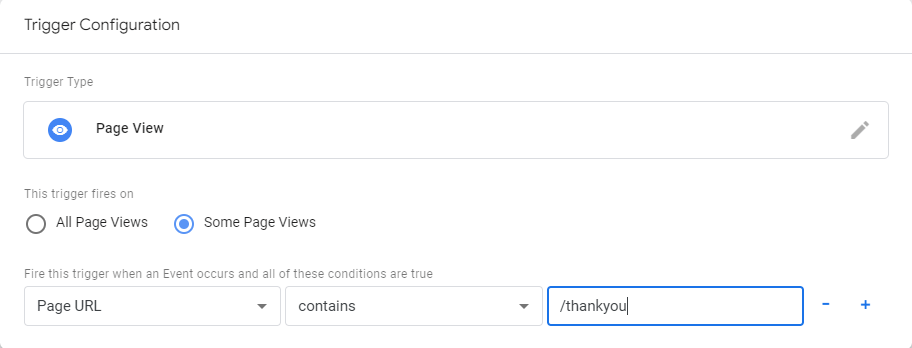
If you have a thank you page directing users after submitting the form, you can create a page_view trigger that only fires on the thank you page.
#1 Open Triggers in Google Tag Manager
#2 Press the New button
#3 Choose trigger type: Pageview and Some page views
If the visitor is redirected to https://www.example.com/thankyou.html, you can set the following rule for this trigger: Page URL contains /thankyou.
If you have multiple forms and all have different thank you pages, you don't need to set any custom parameters to the GA4 event tag. GA4 already automatically tracks page_location, and you can distinguish form submissions with a dimension such as Page Path.
Suppose you have multiple forms and one Thank you page. In that case, you will need to check if you can get a variable that contains some form identifier (e.g., form id, form name, etc.).
Now, use it as an additional parameter in the GA4 generate_lead event tag. It can be something like form_id, form_name, lead_type... (if your forms are located on a different page, you can differentiate them by the referrer, which is automatically tracked in GA4).

Now, it's time to test. Enable the Preview mode in GTM, log in to your website and check if your GA4 tag fired on that event. If the tag fired, go to Google Analytics 4 and check the DebugView:

Custom Event Tracking
Aside from collecting basic and eCommerce data, you are probably very interested to know how to set up more events that are highly relevant and adapted to your business needs.
However, before creating these events, it's good to look at Google's Recommended Events list first. You can easily include the events you'll see on that list (e.g., search and sign in.) They come with relevant parameters, so their implementation will allow you to have more detailed reports and use the GA4's full power to your advantage.
The event parameters in GA4 new reports effectively replace certain portions of previous Google Analytics versions' event components.
You are no longer boxed in by a fixed category, label, or action, and there are no indexes to remember for custom metrics and dimensions. You give them descriptive names instead, and use those names in both the Configuration Tag and the Event Tag.
Register your new event parameters in the GA4 interface, and you'll be able to use them freely in GA4 reports. Also, don't forget the event parameter limitations. There's a maximum of 50 custom dimensions and 50 custom metrics per property.
Parameter length is also capped. A parameter name should not exceed 40 characters, and a parameter value should not exceed 100. If something runs long, shorten it manually with JavaScript before it is sent.
If you're interested in seeing more, look at the complete list of collection and configuration limits that Google provided.
After discovering that none of the Automatic Events, Enhanced Measurements, or Recommended events are adequate for your needs, it's time to use custom events. Custom events have many benefits compared to predetermined events since they provide more variation and expression in terms of event and parameter naming.
You can create custom events both in GTM and GA4. They may combine existing events based on selecting event parameters that appear to be adequate.
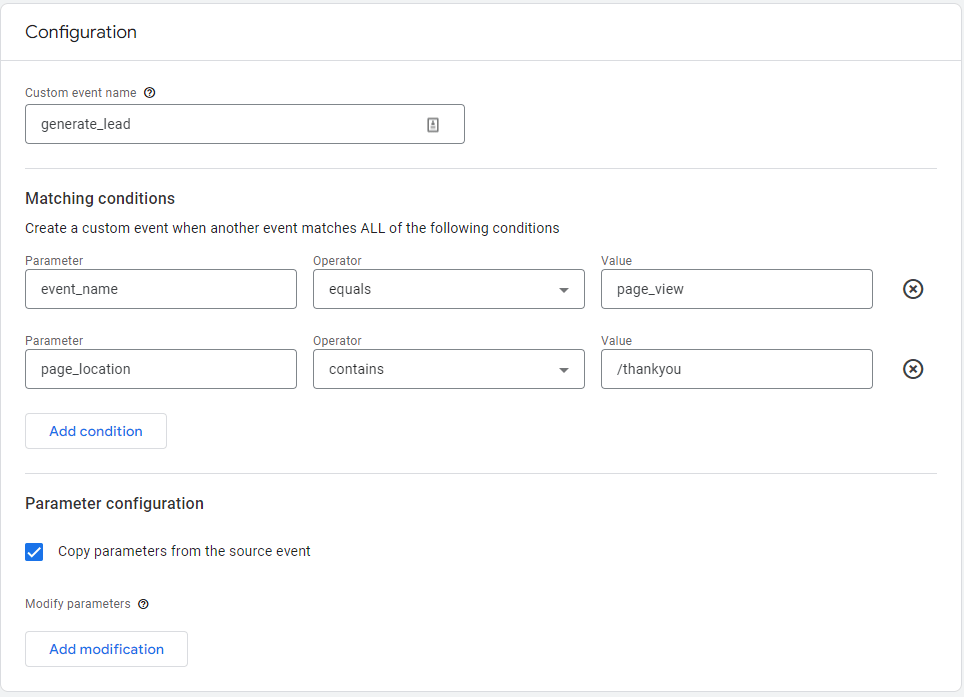
GA4 has many beneficial changes, one of which is the goal creation process.
The goal creation process is much more straightforward. This feature is handy for assigning an existing event as a conversion right in the events list.
Marking the conversions right there and then is a critical step for differentiating genuinely valuable events from the rest.

How do you test events in GA4?
Once you've set up your events, it's time to test them and make sure everything is working correctly. The DebugView is the essential feature developed for debugging GA4 data. Go to Configure section and click on the DebugView on the left side of the GA4 interface.
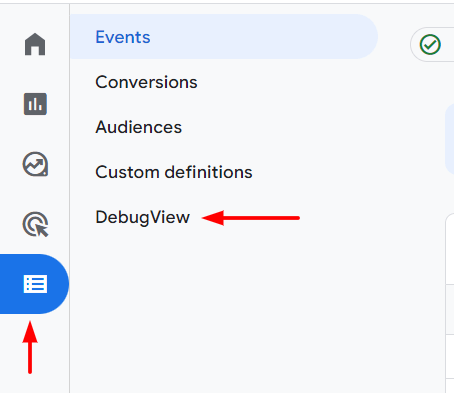
Once the page loads, the data in the DebugView might look similar to this example:

Blue icons with hands symbolize events, and a green icon with a flag is the symbol for conversions. Click on these icons to see the parameters sent together with a specific event. To see the values click on the parameters.

After you test and confirm data is coming in and showing correctly in the interface, submit your GA4 changes to the GTM container and publish them. Just click the Submit button in the top right corner and go ahead and complete the following steps in the user interface.
Once that is completed, you can see your newly set data in the Realtime report.
Where Can I Find Events Data in GA4 Reports?
There are three places where you can find reports with varying levels of detail.
These are:
#1 Configure > Events
#2 Reports > Engagement > Events
#3 Explore (Exploration reports)
Every report is influenced by events that you send because GA4 is an event-based analytics platform (in one way or another). The previous examples are just the most notable ones. Since the first option only shows the list of events with counts, we advise looking into the following two options.
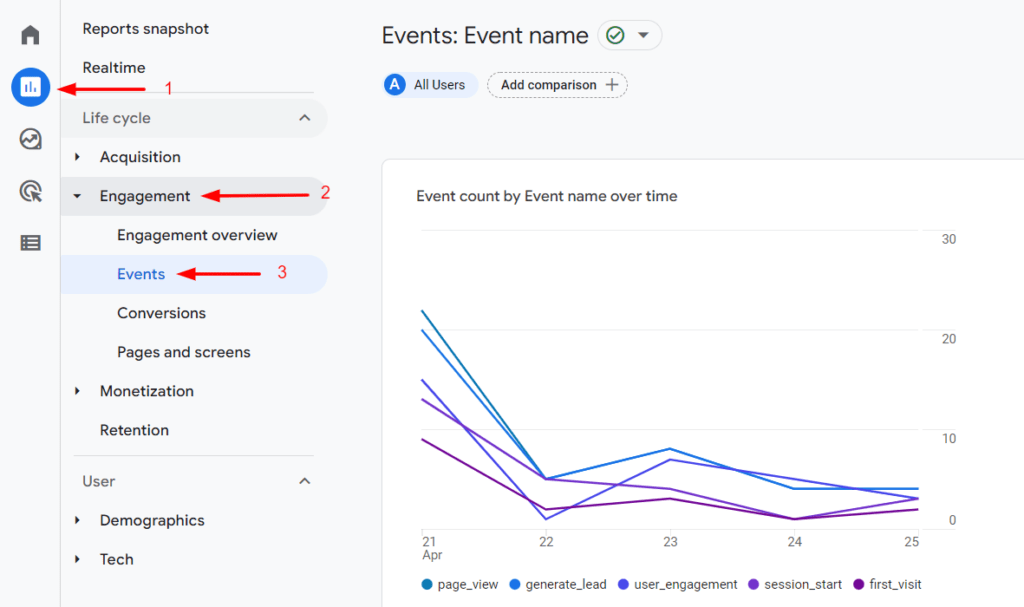
Reports > Engagement > Events
This report will show you a list of all events tracked by your GA4 property. To see a more detailed view, click on the event you want to explore.
You'll notice that this is a summary of all events sent to your property, plus a few charts present as well. When you go down the page, you get to see a list of clickable events and show more data about any event of your choice.
Explore (Exploration Reports)
You can create various reports in Exploration, such as the Free Form, Path Exploration, Funnel exploration, and Segment Overlap. These reports can help you see data more granularly and improve your insights.
In this example, we will see which forms our leads came from on the website, with a breakdown based on different device categories.
Go to Explore and click on the Free Form.
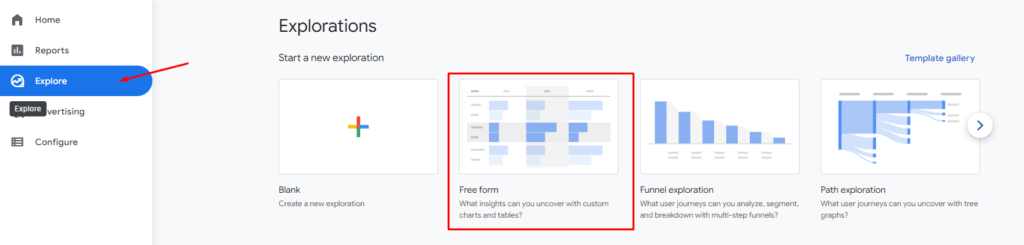
Since we have already created event generate_lead with event parameter lead_type that gives us information about which one of the forms on the website was submitted, we need to include the lead_type custom dimension in the Variable column by clicking on the + icon.

To see the lead_type dimension in the list, it needs to be registered as a custom dimension, which we have created and named Lead type.

Next, we will delete any current dimensions from the Rows section, and instead of them, we will include the Lead type. In the Columns part, the Device category needs to be added, and in the Values, Event count.

As a result, we have generated a report where we can see how users from different devices were interacting with forms on the website.

If there is a need to see just a particular set of data, for that purpose, we can use filters under the Tab settings.

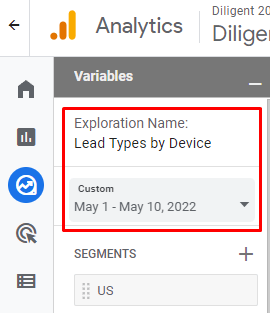
In the top left corner, under the Variables section, we can change the name of the report and the date range.
What are the event limits in GA4?
There are some restrictions that you should know. Make sure you get familiar with this page. Meanwhile, we want to emphasize a few of them in this section.
#1 There is no cap on the total number of events you can send. That is a real change from Universal Analytics, where free accounts were limited to 10 million hits a month.
#2 You may have up to 500 distinct event names per property Enhanced Measurement events are not included). If you have a login event and a Login event, these will be recorded as two distinct event names.
#3 Remember that you can register up to 50 custom dimensions and 50 custom metrics in a property. You do that by going into the Configure section in the left sidebar and clicking the Custom definitions button to configure them. If you send more custom parameters, but they aren't registered, it's all good.
#4 With an event, you may send up to 25 parameters.
#5 Both the event name and the parameter name must be up to 40-characters-long.
New to GA4?
Universal Analytics stopped collecting data on July 1, 2023, so GA4 is now the only version Google runs. If you are still getting to know it, read up on the main GA4 benefits on our blog.
Final Thoughts
You now know how to set up and test events in Google Analytics 4 with Google Tag Manager. The next step is yours: start tracking the events that matter for your site, and test each one before you rely on it.
Remember, the first try is always experimentation: Try out different combinations of events and see which ones give you the most valuable insights into your website traffic and user behavior.
Once your events are firing, the natural next move is turning the important ones into conversions. Our guide to setting up conversions in GA4 picks up right there. And if you would rather have the whole tracking setup built and checked for you, that is what our conversion tracking service is for.
Frequently asked questions
What are the four types of events in GA4? Automatically collected events, Enhanced Measurement events, recommended events, and custom events. When you plan tracking, work down that list in order and only build a custom event when none of the first three cover what you need.
How do I create a custom event in GA4 with GTM? In Google Tag Manager, create a Google Analytics GA4 Event tag, point it at your GA4 configuration tag, name the event, then attach a trigger such as a page view on the thank-you page. Test it in DebugView, then submit and publish the container.
How do I test GA4 events? Use DebugView. Turn on Preview mode in Tag Manager, trigger the event on your site, and watch it arrive in DebugView, where a blue hand icon is an event and a green flag is a conversion. Confirm the parameters before you rely on the data.
Where do I find event data in GA4? In three places: Configure then Events for the raw list with counts, Reports then Engagement then Events for a fuller summary, and the Explore reports for granular, custom analysis. Because GA4 is event-based, every report is shaped by the events you send.
What are the event limits in GA4? There is no cap on total events. You get up to 500 distinct event names per property, up to 25 parameters per event, and 50 custom dimensions plus 50 custom metrics. Event and parameter names cap at 40 characters, and parameter values at 100.